
Have you ever needed to quickly type something in your native language, but didn’t want the hassle of installing a full OS-level keyboard? That’s where the Google Input Tools Chrome extension comes in. It lets you type in your preferred language directly into any text box on almost any website. You get transliteration, virtual keyboards, and IMEs all packaged into your browser. It supports every transliteration method from the Google Transliteration Service and over 90 keyboard layouts from Google Virtual Keyboard.
How To Get Started
First things first, grab the extension from the Chrome Web Store.
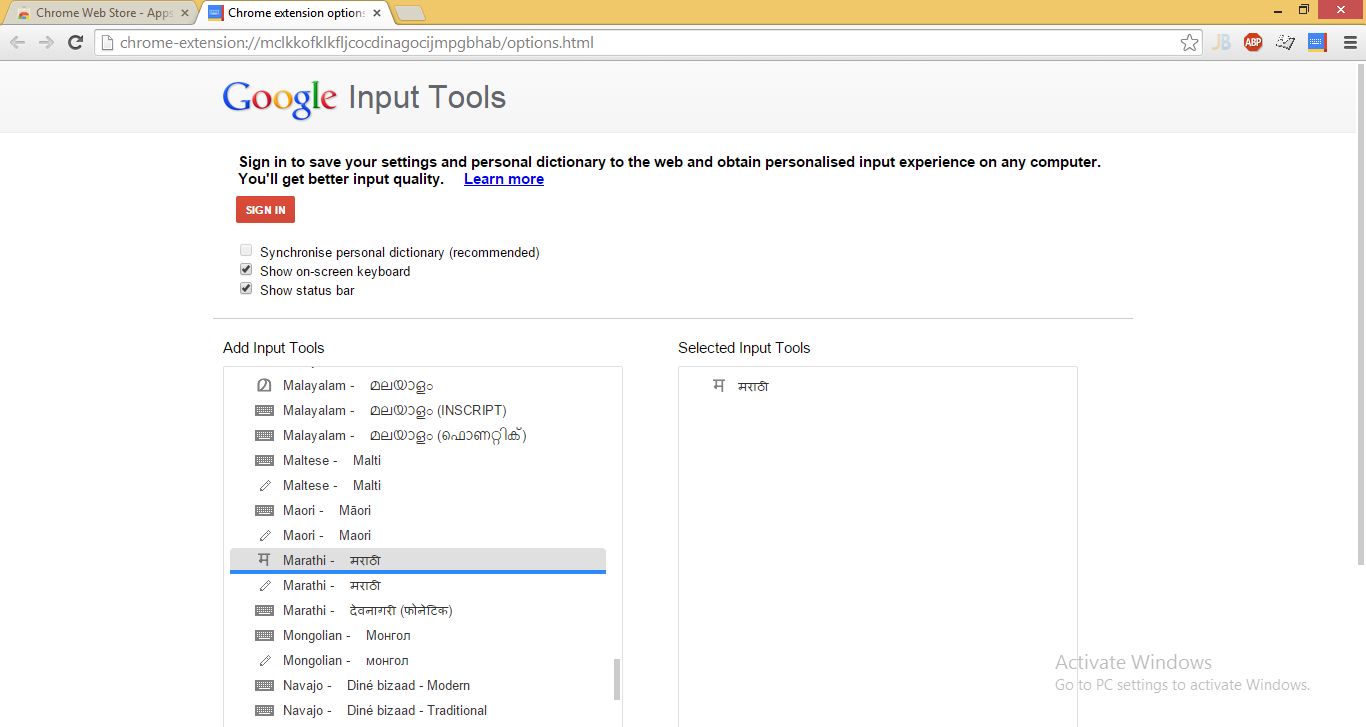
When you install it for the first time, it’ll ask you to pick your input methods. Just click the extension icon and select “Extension Options” from the pop-up. A new tab opens up where you can pick exactly what you need. Don’t worry if you miss something—you can always come back to this page to add, remove, or rearrange your tools.
For example, here’s a screenshot showing how I added Marathi to my input tools.
Once you’re set up, simply click the extension icon whenever you need to type. You’ll see a menu that looks something like this:
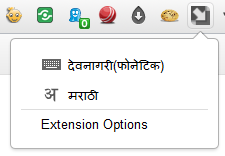
Since I selected Marathi, the options reflect that language.
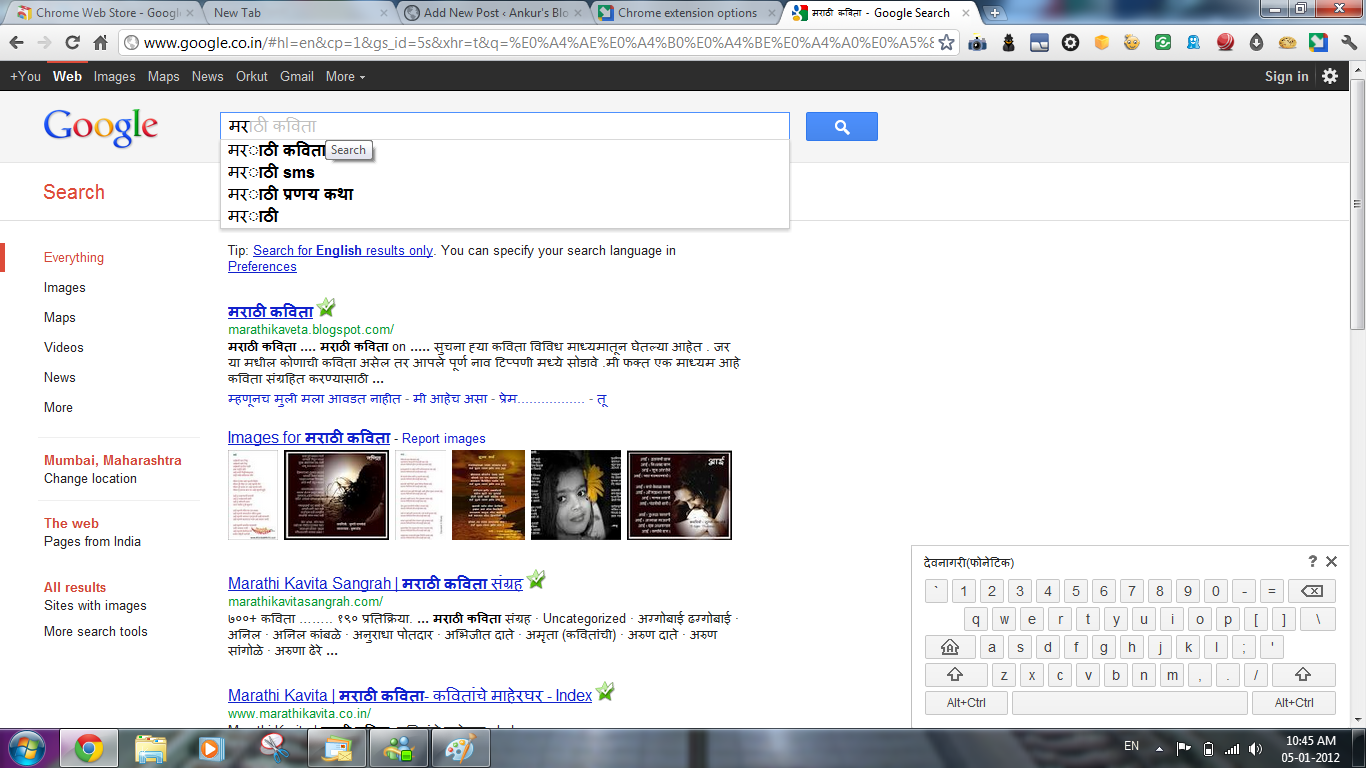
You’ll notice two different icons. Clicking the keyboard icon brings up a virtual keyboard right on your screen, which is super handy if you’re not used to the transliteration layout. The second icon is a specific letter from your chosen language (in my case, ‘अ’ for Marathi). Clicking that activates the transliteration input.
It really is that simple: pick your tool from the pop-up, click on a text box on any webpage, and start typing.
When you’re done, just click the extension icon again and select “Turn Off”.
See It In Action
Are There Any Limitations?
Yes, a few. Because of Chrome’s security model, the extension won’t work in the address bar (omnibox), on the Chrome Web Store itself, or inside other Chrome extensions. And if you’re still using Flash applications (which are pretty rare these days!), it won’t work inside those either.
Download Google Input Tool:Chrome Extension
(Source: Chrome Web Store)
If you run into any issues setting this up, drop a comment below or reach out to me. I’m always happy to help!
certificates are not valid yet!!!!!!!!!!!!
Check date and time of your PC & also check that you are using latest version of Google Chrome
Is it possible to create my own input keyboard and add to google input tool?
excellent publish, very informative. I wonder why the opposite experts of this sector ddo not
notice this. You must continue your writing.
I’m confident, you’ve a great readers’ base already!
Hey there, I think your website might be having browser
compatibility issues. When I look at your website in Ie, it looks fine but when opening in Internet Explorer, it has some overlapping.
I just wanted to give you a quick heads up! Other then that,
great blog!
“AdGuard is my adblocker top choice. The only other extensions I use are Google Translate, Fillr, OneNote Web Clipper. I may look at Mercury reader. Chrome is too big. I love Vivaldi.
I have been reading out many of your stories and i can state clever stuff. I will definitely bookmark your site.