
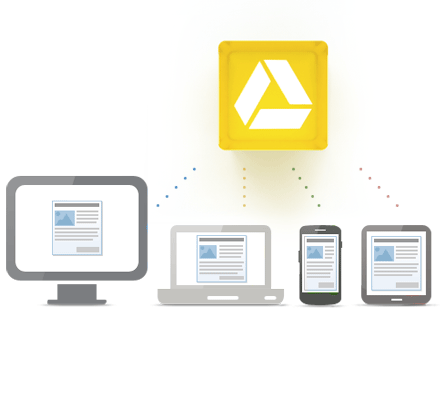
 Just a few days ago, Google finally threw its hat into the cloud storage ring with the highly anticipated launch of Google Drive. Every tech blog and major newspaper has been buzzing about it, and because it’s Google, this is a massive shift for the internet.
So, What Exactly Is Google Drive?
If you’ve spent any time online recently, you probably already know the basics. Google Drive is a robust cloud storage solution that lets you upload, store, and share files. They’re generously offering 5GB of free storage to every user, and if you need more space, their paid tiers are incredibly cheap.
Google has already released dedicated apps for Windows, Android, and they’re working on iOS versions as well. You just install the app, and you can interact with your cloud files exactly as you would any normal folder on your computer.
Functionally, Google built a direct competitor to Dropbox. However, Google starts you out with 5GB of free space right out of the gate, whereas Dropbox only gives you 2GB (unless you jump through hoops referring friends). If you’re already accustomed to how Dropbox works, transitioning to Google Drive is totally seamless.
How Do I Sign Up?
The best part is that Google Drive is automatically tied to your existing Google account. If you have Gmail, you already have Google Drive. Just head over to drive.google.com and sign in.
(If you see a ‘Notify Me’ button instead of your files, don’t panic—Google is rolling it out in waves. Just click the button and they’ll email you when your account is activated.)
Checking Out the Interface
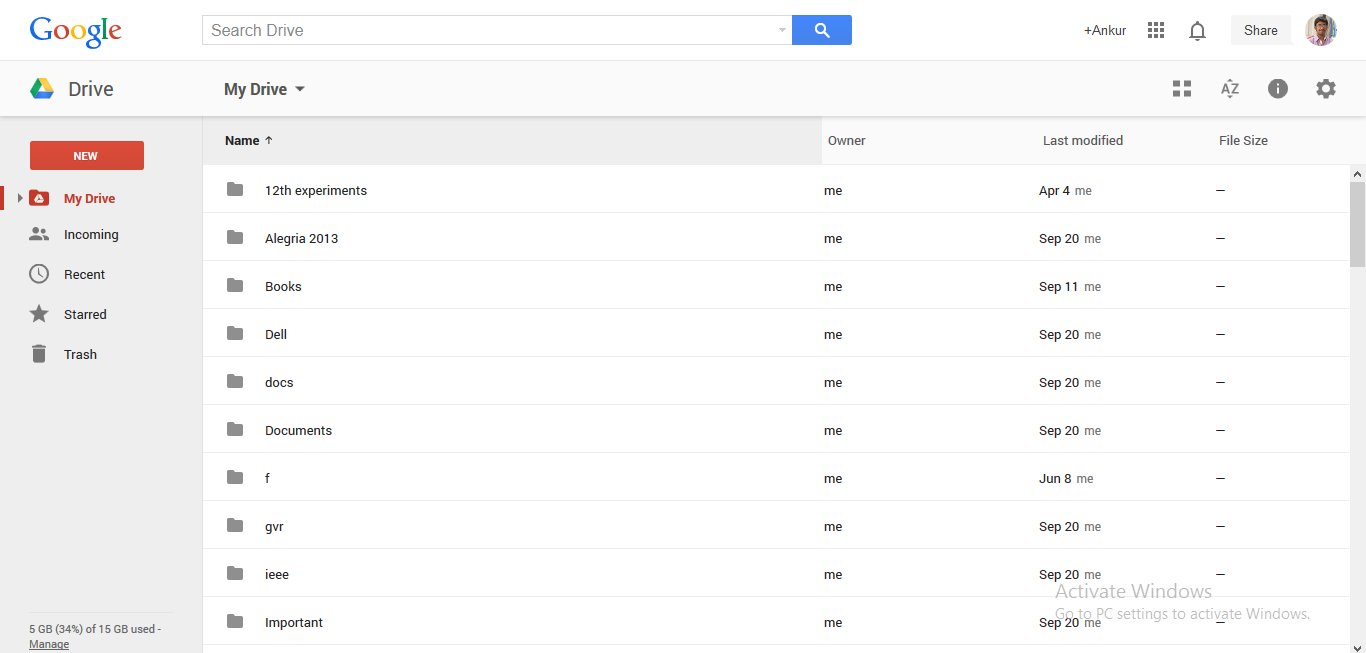
If you’ve used Google Docs before, you’ll feel right at home here. The interface is almost identical. The ‘Create’ button even houses the exact same options you’re used to.
Essentially, Google Drive is just Google Docs merged with the syncing capabilities of Dropbox. It’s incredibly intuitive. Because it integrates deeply with Gmail and Google+, sharing files with friends or collaborating with a team is effortless.
The Desktop App Experience
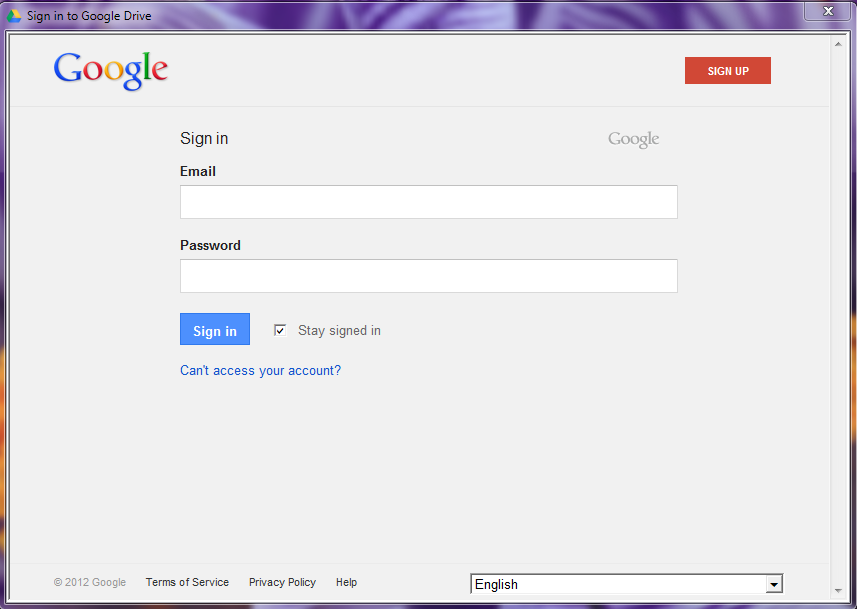
Once you download the Windows app, you just need to log in with your standard Google credentials.
After logging in, you’ll see a quick welcome screen. Make sure to hit the “Advanced Setup” button if you want to customize your experience.
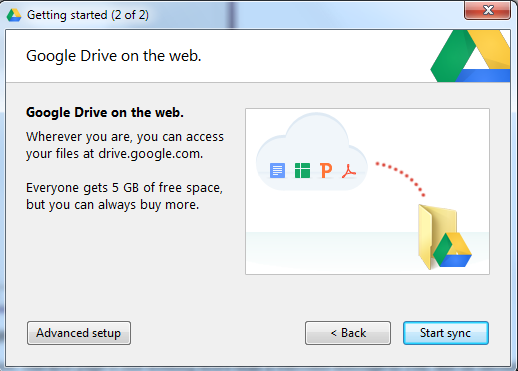
In the settings window, you can choose exactly where the Google Drive folder lives on your hard drive and decide whether the app should launch automatically when you boot up your PC.
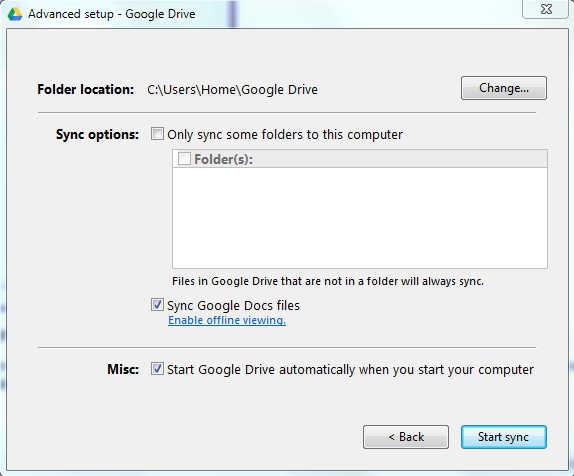
Once the setup is done, a little Drive icon will sit quietly in your system tray, and you can browse your cloud files right through Windows Explorer.
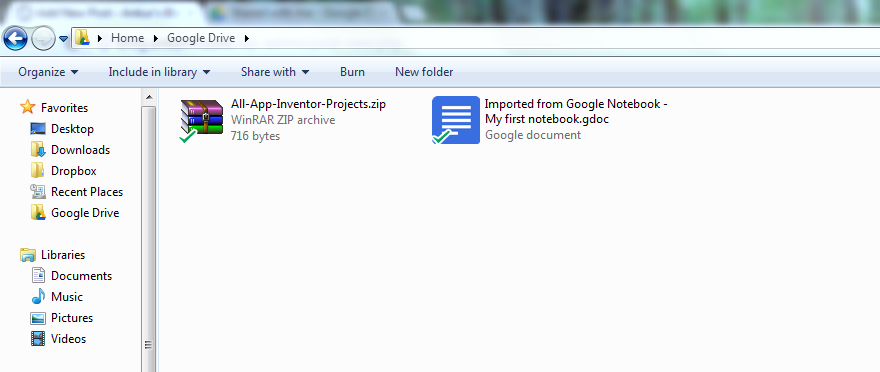
Drag a file into the folder, and it zips right up to the cloud. Delete a file, and it vanishes everywhere. It’s that simple.
Google Drive on Mobile
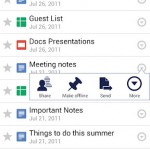
Just like the desktop experience, the Android app is packed with features. You can view, edit, download, and share your documents directly from your phone. Here are a few screenshots from the Google Play store so you can see it in action:
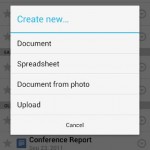
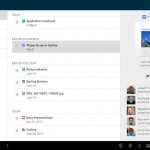
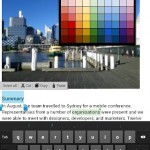
If you want a great visual breakdown, check out this introductory video Google released:
Ready to dive in? Head over to drive.google.com.
No Comments yet!