
As we all know, SkyDrive is Microsoft’s free cloud storage service that comes bundled with every Windows Live account. It starts you off with 7GB of free space (and early adopters were lucky enough to keep 25GB!). For a long time, you could only access it through a web browser, but Microsoft recently changed the game by launching an official desktop application for both Windows and Mac.
Shortly after the app dropped, I shared a few tips on how to maximize your SkyDrive experience. We talked about:
- Using it as a standard storage folder
- Moving your “My Documents” folder directly to the cloud
- Syncing files between multiple computers
- Using it as an automated backup solution
You can catch up on the full post right here.
Since then, I’ve discovered a new trick that makes SkyDrive even more integrated into your workflow. While you can do this with Google Drive or Dropbox, SkyDrive’s generous free storage makes it the perfect candidate for this.
The official SkyDrive app creates a specialized folder on your PC that synchronizes everything inside it to the cloud. You can move files in and out, and they’ll automatically sync across all your devices.
Now, let’s take it a step further.
What if you could mount SkyDrive as its own dedicated drive?
This is a great quality-of-life improvement. Instead of hunting for a specific subfolder, you can access your cloud storage directly from “My Computer” with a single click, just like a hard drive or a USB stick.
Here’s how to do it:
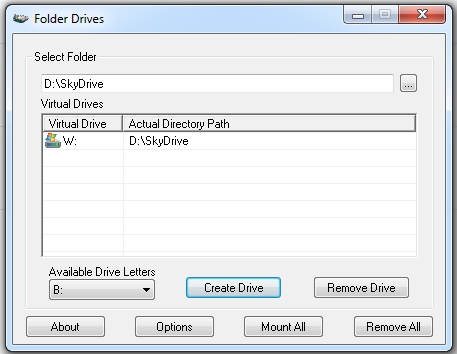
To make this happen, you’ll need a tiny utility called Folder Drive. It’s a simple tool that lets you mount any local folder as a virtual drive letter. You just download it, run it, pick your folder, assign a letter, and hit create.
To mount your SkyDrive, open Folder Drive, select the local SkyDrive folder created by the official app, and pick a drive letter (I like using ‘W’). Then just click the “Create Drive” button.
Now, when you open “My Computer,” you’ll see a brand new drive sitting there. You can even rename it to “SkyDrive” to keep things organized.
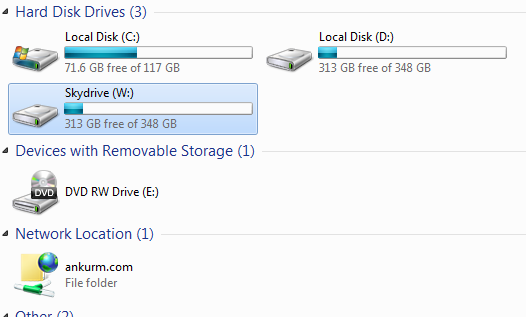
Because we’re just mounting the existing folder, anything you save to this new drive letter is actually being saved to your SkyDrive folder and will sync to the cloud automatically. You can use this same trick with Google Drive and Dropbox also or even for deep located folder which contains data that you need frequently.
According to the developer, Folder Drive was built for older versions of Windows like XP and Vista, but I’ve tested it on Windows 7 64-bit and it works perfectly.
Quick Tip: By default, these virtual drives are only valid for your current session. If you restart your PC, you’ll need to remount them. You can easily toggle an option in the Folder Drive settings to make them persistent!
You can grab the Folder Drive utility for free from the developer’s site:
Folder Drive for Windows
No Comments yet!