

about:config trick still works in modern Firefox. The setting name (layout.spellcheckDefault) and values (0 = off, 1 = multi-line only, 2 = all inputs) remain the same.
If you’re a Firefox user, you’ve probably used its built-in spell checker without even thinking about it. Type a word wrong in a text area and Firefox underlines it in red — just like Microsoft Word. Click it and you get suggestions. Simple enough.
But here’s something most people don’t know: by default, Firefox only runs the spell checker in multi-line text boxes (like the body of an email). Single-line input fields — like username boxes or search bars — are excluded. If you want spell checking to work everywhere, you have to enable it manually.
How to enable spell check for all inputs
- Open Firefox and type about:config in the address bar.

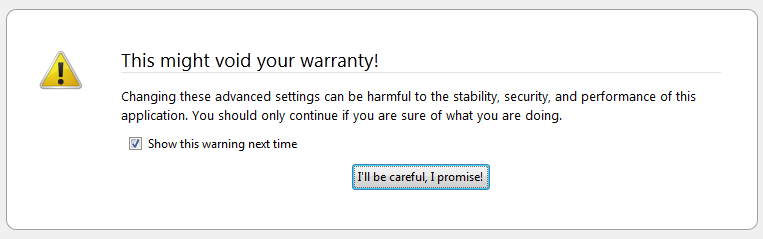
- Firefox will warn you that you’re about to enter the advanced settings area and that a wrong change can cause serious issues. Click “I’ll be careful, I promise” to proceed.
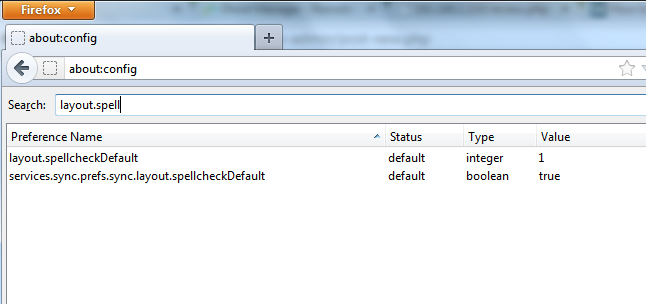
- Type layout.spellcheckDefault in the filter field. You’ll see it has a value of 1 by default (spell check active in multi-line boxes only). Double-click it, change the value to 2, and click OK.
How to disable spell check entirely
Follow the same steps but in the last step change the value to 0 instead of 2. That turns off spell checking completely.
Having spell check active in every input field takes a little getting used to — it underlines things in places you’re not expecting. But most people who try it end up liking it.
No Comments yet!