
In this post, we implement Histogram Equalisation in MATLAB. Histogram equalisation is an image enhancement technique that redistributes the pixel intensity values of an image so that the resulting histogram is approximately uniform. This increases the global contrast of the image, especially when the usable image data is represented by close contrast values. It is widely used in medical imaging, satellite imagery, and photography.
MATLAB Code
% Histogram Equalisation in MATLAB
% Reads a colour image, converts to grayscale, reduces contrast
% intentionally (to simulate a low-contrast image), applies
% histogram equalisation, and displays both images with their histograms.

clc;        % Clear the command window
clear all;  % Clear all workspace variables

% --- Load and prepare image ---
% Place your image in the MATLAB working directory.
originalImage = imread('sample.jpg');         % Read the colour image
grayImage     = rgb2gray(originalImage);      % Convert to grayscale
grayImage     = imresize(grayImage, [256, 256]); % Resize to 256x256

% Reduce contrast by scaling pixel values to half range (simulate low contrast)
lowContrastImage = uint8(0.5 * double(grayImage));

% --- Apply histogram equalisation ---
% histeq() redistributes intensity values to flatten the histogram.
equalizedImage = histeq(lowContrastImage, 256);

% --- Display results: images and histograms ---
figure;

subplot(2, 2, 1);
imshow(lowContrastImage);
title('Low Contrast (Original)');

subplot(2, 2, 2);
imshow(equalizedImage);
title('Histogram Equalised');

subplot(2, 2, 3);
imhist(lowContrastImage);
title('Original Histogram');

subplot(2, 2, 4);
imhist(equalizedImage);
title('Equalised Histogram');
How the Code Works
- imread() and rgb2gray() — The image is loaded and converted to grayscale.
imresize(grayImage, [256, 256])scales it to a fixed 256×256 resolution to keep the processing consistent regardless of the source image size. - Simulating low contrast — Multiplying pixel values by 0.5 compresses them into the range 0–127. This deliberately creates a dark, low-contrast image that histogram equalisation can visibly improve.
- histeq(I, 256) — MATLAB’s built-in histogram equalisation function. It computes the cumulative distribution function (CDF) of the input histogram and uses it as a mapping function to remap pixel values so the output histogram is approximately flat over 256 levels.
- imhist() — Plots a bar chart of the pixel intensity distribution. Comparing the original and equalised histograms makes the spreading effect of equalisation visually clear.
- subplot(2, 2, k) — Arranges the two images and two histograms in a 2×2 grid so the before-and-after comparison is immediate.
Sample Output
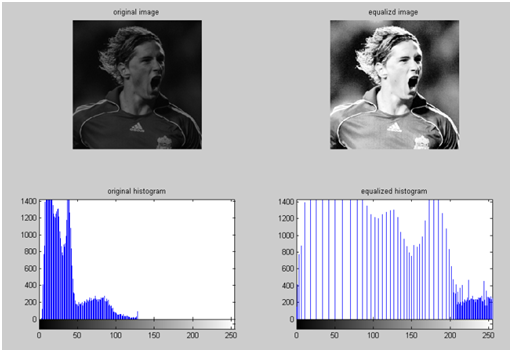
No text is printed to the command window. MATLAB opens a figure window with four subplots showing the low-contrast image, the equalised image, the original histogram, and the equalised histogram.
Output Explanation
- Low Contrast Image — Appears dark because all pixel values are compressed into the range 0–127. The scene is recognisable but lacks brightness and detail in shadows.
- Histogram Equalised Image — Visibly brighter and with more contrast. Edges and textures that were indistinguishable in the dark image become clear after equalisation.
- Original Histogram — All bars are clustered on the left half of the x-axis (0–127), confirming the narrow, dark intensity distribution.
- Equalised Histogram — Bars are spread more evenly across the full range 0–255. The distribution is not perfectly flat because
histeqoperates on discrete integer values, but it is substantially more uniform than the original.
See Also
- Implementing Digital Negative and Grayscale of Image in MATLAB
- Program for Threshold in MATLAB
- Implementing Edge Detection in MATLAB
- Implementing HPF in MATLAB
Conclusion
Histogram equalisation is one of the most effective automatic contrast enhancement techniques in image processing. This MATLAB program demonstrates the full pipeline: loading an image, artificially degrading its contrast, applying equalisation, and comparing histograms before and after. In practice, histeq() is applied directly to real-world low-contrast images, such as chest X-rays or foggy photographs, to improve their visual quality.
No Comments yet!