
Dropbox allows you to take screenshot and share it right from your Dropbox account easily. Just like print screen button that you have used in old days to take screenshot, Dropbox app has a special combination of buttons to take screenshot of your PC.
While app is running on your PC, you can use Ctrl + PrtScn (Print Screen) buttons to take screenshot of whole desktop. Once you pressed this key combination Dropbox app will take the screenshot, will upload it to your Dropbox account and will put the public link on your clipboard. Now just you have to do a paste operation i.e. Ctrl + V to share that link.
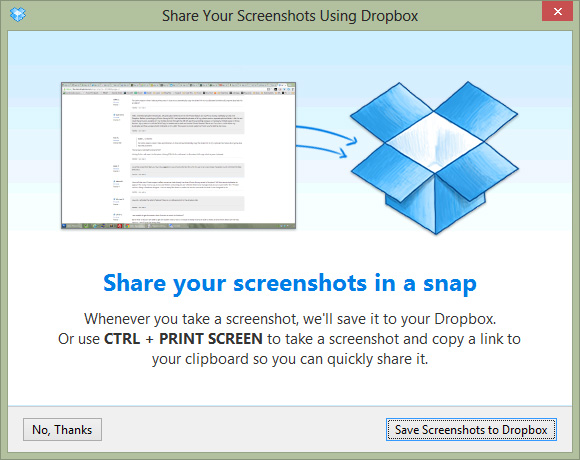
Alternatively, if you want to take screenshot of running application (focused on that app) then you can use Ctrl + Alt + PrtScn combination. Dropbox will take screenshot of focused window and will save it to your online storage and will put the public link on your clipboard.
No Comments yet!