
If you’re a hardcore web surfer, you’ve probably run into this problem: you’ve got dozens of tabs open across your screen, and you don’t even know which one to look at next. All those open tabs chew up your system’s memory, which inevitably leads to a browser crash. And if you run into a system fault, a blue screen, or a power outage, you risk losing all of them. Or, more simply, you just don’t have the time to read through all that content right now. Even if your browser doesn’t crash, the sheer clutter of that many tabs is pretty irritating.
If you’re using Google Chrome, I found a neat little extension that helps solve this called Page Snooze.
So, What Does Page Snooze Actually Do?
It’s a pretty clever concept. Page Snooze takes a tab and hides it away for a specific amount of time. Once that timer runs out, the tab automatically reopens in your browser window, right when you’re ready to deal with it.
You can grab the extension directly from the Chrome Web Store:
Download Page Snooze
Once you’ve installed it, you’ll notice a new clock icon sitting right next to your address bar.
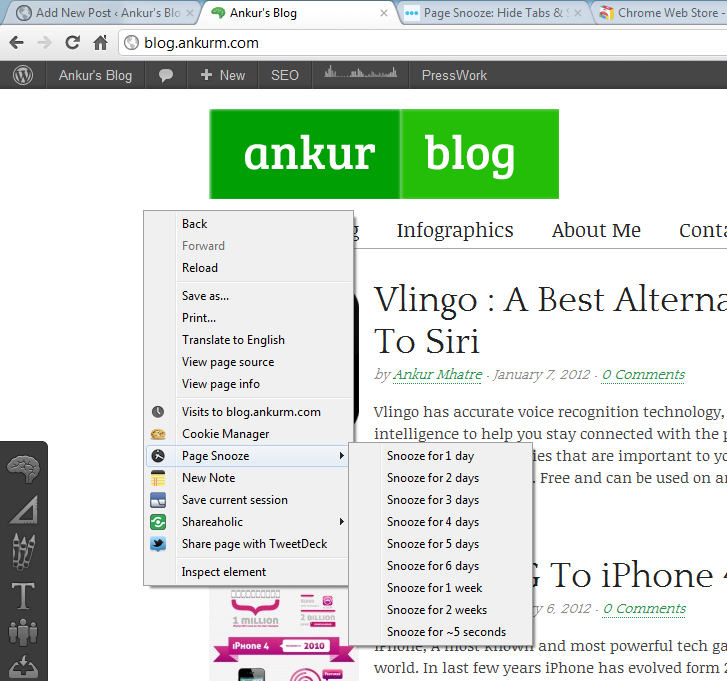
Using it is super intuitive.
Just right-click anywhere on the page you want to hide, and you’ll see a new “Page Snooze” option in the context menu. Select how long you want to snooze it for, and poof—the tab vanishes. It’ll automatically spring back to life when the time is up.
If you ever need to check what you’ve hidden, you can view your snoozed tabs by right-clicking the Page Snooze icon in your toolbar and selecting “Options”.
I have to admit, I didn’t find the plugin perfect for my workflow because the shortest snooze time you can set is a full 24 hours. But it’s still pretty useful! For instance, it’s great for hiding pages you only need to check once a day—like a dashboard, a results page, or a notice board. You can just snooze them until tomorrow.
Page Snooze is essentially a way to defer your reading without having to clog up your bookmarks bar or folders with thousands of temporary links. Because the tabs forcefully reappear, you’ll never forget to actually go back and look at them.
Give it a try; you might just find it’s exactly what your workflow needs.
No Comments yet!