Note: I wrote this guide back in 2012 for Oracle SQL Express Edition 11g. While the command prompt steps are still valid for Oracle databases, the specific software versions and setup screens will look completely different today!
Today, I’m going to show you how to connect to and interact with Oracle SQL directly from your Windows command prompt. You might be wondering why we don’t just use the built-in Run SQL Command Line tool from the Start menu. The big issue with that tool is that it doesn’t support basic copy and paste functionality—something that developers like you and me desperately need! So, let’s look at how to properly connect to your database using the trusty standard command prompt.
First things first, you’ll need to have Oracle SQL installed on your PC. If you don’t have it yet, you can grab it right here:
Download Oracle SQL Express Edition 11g
Oracle SQL Express is completely free to use, but Oracle does require you to log in before downloading. If you don’t have an account, just hit the sign-up button—it’s free and only takes a minute.
The download is fairly hefty at around 350MB. Once it’s finished, extract the ZIP file and run setup.exe. The installation wizard is pretty standard. If you’ve installed Windows software before, you can safely just click “Next” through most of the prompts.
During the setup process, you’ll eventually hit a screen that looks like this:
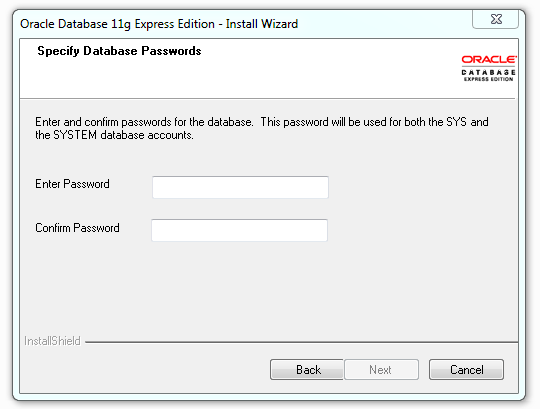
This is an important step. You’re being asked to set the password for the SYS and SYSTEM users. In Oracle, these are your master administrative accounts. If you’re just setting this up on your local machine for development and learning, I highly recommend using a simple password like admin. It’s easy to remember and quick to type. Of course, you can use whatever password you prefer. Once you’ve typed it in, click Next.
The installer will now begin copying files and setting up your database. Just sit back and wait for it to finish.
Continue reading Starting With Oracle SQL →