MyPermissions : Check Who Is Accessing Your Social Profiles

Note: I wrote this back in 2012. While managing app permissions is still critical today, the specific tool mentioned here might have evolved or changed its domain.

Security matters. We constantly hear stories about someone’s Facebook account getting hacked or a Gmail password being stolen. It’s an unfortunate reality of living online. But I recently stumbled across something incredibly useful for locking down your accounts: MyPermissions.

At first glance, MyPermissions doesn’t look like much—it’s essentially just a page with eight links. But that’s exactly why it’s great. They don’t ask for your passwords, you don’t need to create a username, and there’s absolutely no sign-up process.

All you have to do is head over to their site:
MyPermissions.org

When you get there, you’ll see a clean interface that looks like this:
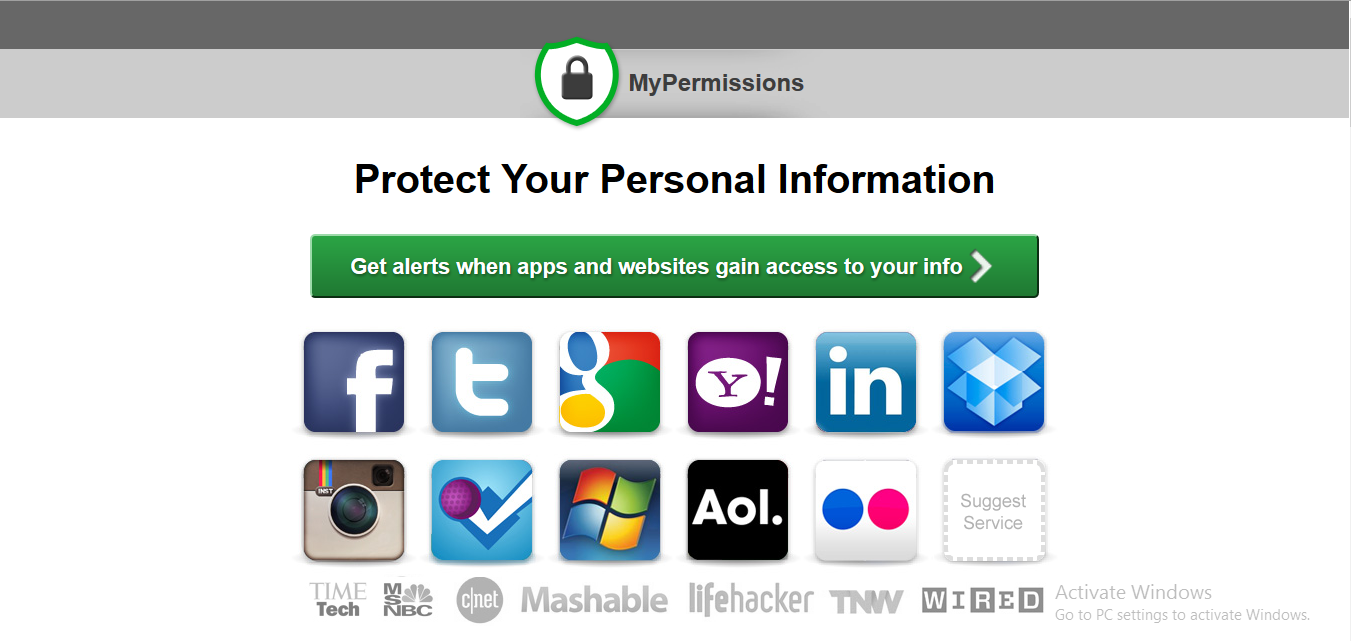
MyPermissions Homepage

The next steps couldn’t be simpler:

  • Just click on the icon for the social network you want to check. It’ll take you straight to the permissions page where you can see exactly which third-party apps have access to your profile data.
  • From there, just revoke access for any apps you no longer use or that look suspicious.

Continue reading MyPermissions : Check Who Is Accessing Your Social Profiles

Facebook Timeline Customization: 5 Tools for Killer Cover Photos

Note: I originally wrote this post in 2012 when Facebook Timeline was brand new. Many of these third-party tools might be offline or have changed significantly since then!

Remember when Facebook Timeline first rolled out? It was a massive visual shift, and suddenly everyone had this huge, empty “Cover Photo” space at the top of their profiles just waiting to be customized.

If you’re looking to make your profile stand out, I’ve put together a list of some great services that let you build a killer cover banner.

  1. Pic Scatter
  2. Profile Picture Maker’s Timeline Cover Banner
  3. FaceItPages’ Timeline Cover Tool
  4. Cover Canvas
  5. CoverJunction

Every single one of these tools is unique in its own way. I recommend trying a few of them out to see which one helps you create the perfect vibe for your profile.

Aside from these standalone sites, there’s also a native Facebook app you can try out: the J4 Timeline Covers Facebook App.

If you want a deep dive into how each of these tools actually works, Mashable has a fantastic, full review of all these sites and apps. You can check that out right here.

(Source: Mashable)

Google Input Tools : Chrome Extension

Note: I originally wrote this post way back in 2012. While the Google Input Tools extension is still around, some of the interfaces, screenshots, and exact features might have changed. Keep that in mind as you read through!

Have you ever needed to quickly type something in your native language, but didn’t want the hassle of installing a full OS-level keyboard? That’s where the Google Input Tools Chrome extension comes in. It lets you type in your preferred language directly into any text box on almost any website. You get transliteration, virtual keyboards, and IMEs all packaged into your browser. It supports every transliteration method from the Google Transliteration Service and over 90 keyboard layouts from Google Virtual Keyboard.

How To Get Started

First things first, grab the extension from the Chrome Web Store.

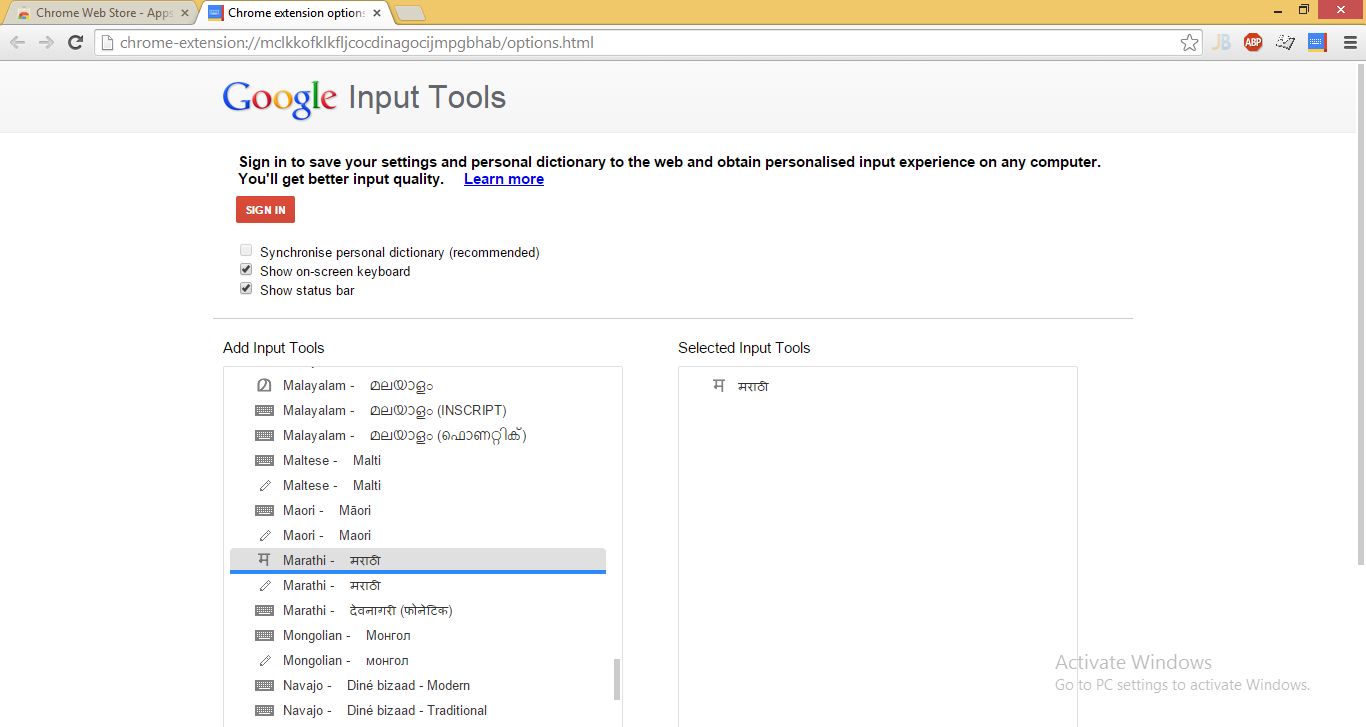
When you install it for the first time, it’ll ask you to pick your input methods. Just click the extension icon and select “Extension Options” from the pop-up. A new tab opens up where you can pick exactly what you need. Don’t worry if you miss something—you can always come back to this page to add, remove, or rearrange your tools.

For example, here’s a screenshot showing how I added Marathi to my input tools.

Google Input Tools Options

Continue reading Google Input Tools : Chrome Extension